LED display EDID planning should define what each source is asked to output, where that information is stored, and how the complete connection behaves when users reconnect. Do not approve compatibility from a single laptop demonstration. Test the actual source models, docks, adapters, switcher routes, and startup conditions that the room will use.
A large LED wall may work perfectly with the installer’s computer yet become difficult to use when a visiting presenter arrives. The buyer’s decision is therefore broader than “does it have HDMI?” A useful purchase specification includes an agreed input format, a documented EDID policy, a tested connection kit, and a clear recovery procedure. Those details turn a successful demonstration into a repeatable operating workflow.
What does EDID do in an LED display system?
EDID stands for Extended Display Identification Data. Extron’s EDID explanation describes it as a way for a display to tell a source about supported operating characteristics. A computer uses that information when selecting its video output. Communication problems can contribute to missing images or unexpected resolutions, but those symptoms alone do not prove an EDID fault.
For an LED installation, draw the actual connection from laptop to adapter, switcher, extender, processor, and screen. Ask the integrator which device presents EDID to the laptop on each route. Do not assume that the source reads information directly from the LED modules. An intermediate device may supply a stored profile, and the profile that matters is the one the source actually receives.
Record that boundary on the signal diagram. The LED supplier, room integrator, and IT team should agree who selects the profile and who validates it. This is a more useful purchasing question than simply requesting “EDID support” on every line of the equipment list.
Keep source timing, screen pixels, and content layout separate
The LED wall’s physical pixel canvas, the source’s transmitted video format, and the content layout are separate design decisions. A wide custom wall does not automatically require every guest laptop to output that exact canvas. The integrator may instead propose a supported standard input format and define how the processor places that image on the wall.
As a planning example, a wall with a 3,840 × 1,080 pixel canvas and a 1,920 × 1,080 presentation source have different aspect ratios. Agree whether the presentation occupies a centered region, sits beside other content, or is intentionally cropped. Stretching it to fill the entire wall changes its geometry. This example is not a claim that any particular processor supports the required layout.
For the underlying canvas calculation, use the LED display resolution planning guide. Then document the input width and height, frame rate, color format, bit depth, audio needs, and any custom timing requirement. Confirm support across the proposed chain, not only at the processor’s headline resolution.
An EDID profile is not a scaling engine and does not add transmission capacity. Extron’s DSC 401 specification, for example, lists scaling and EDID management as distinct functions. For your project, request separate evidence of accepted input formats, image processing, and output mapping. A label such as “4K compatible” is not a complete operating specification.
Choose a deliberate LED display EDID policy
Ask whether the source-facing information follows a connected destination or remains assigned to a saved profile. Neither choice is automatically better. A fixed room with a stable presentation format has different needs from a flexible routing system whose destinations change.
| Approach to discuss | Potential project fit | Buyer approval question |
|---|---|---|
| Follow or copy a connected destination | Routes where the destination should influence source format | Which output supplies the profile, and what happens when it changes? |
| Assign a saved profile | A room with an agreed, repeatable input format | Has every required source and downstream route been tested with it? |
| Use a custom profile | A documented format need not covered by a suitable preset | Who validates the timing, maintains the file, and provides a fallback? |
The Lightware HDMI20-OPTC series manual distinguishes static emulation from dynamic emulation. In that product family, a static selection stays assigned until changed, while dynamic behavior can follow an attached display. These are documented examples, not promises about another switcher or LED controller.
Have the supplier demonstrate the selected policy using the final firmware. Include any preview monitor, recorder, or secondary display that will share the route. Ask whether attaching, removing, or replacing that device changes what the laptop sees. Save the intended behavior rather than leaving an unexplained factory default in the handover.
Test the connection kit that people will actually use
Treat each laptop, port, dock, adapter, and cable combination as a test case. A direct HDMI demonstration does not approve a USB-C docking route. Likewise, a successful connection through the installer’s adapter does not validate a different adapter purchased later. Keep model identifiers in the commissioning record so replacements can be checked against something concrete.
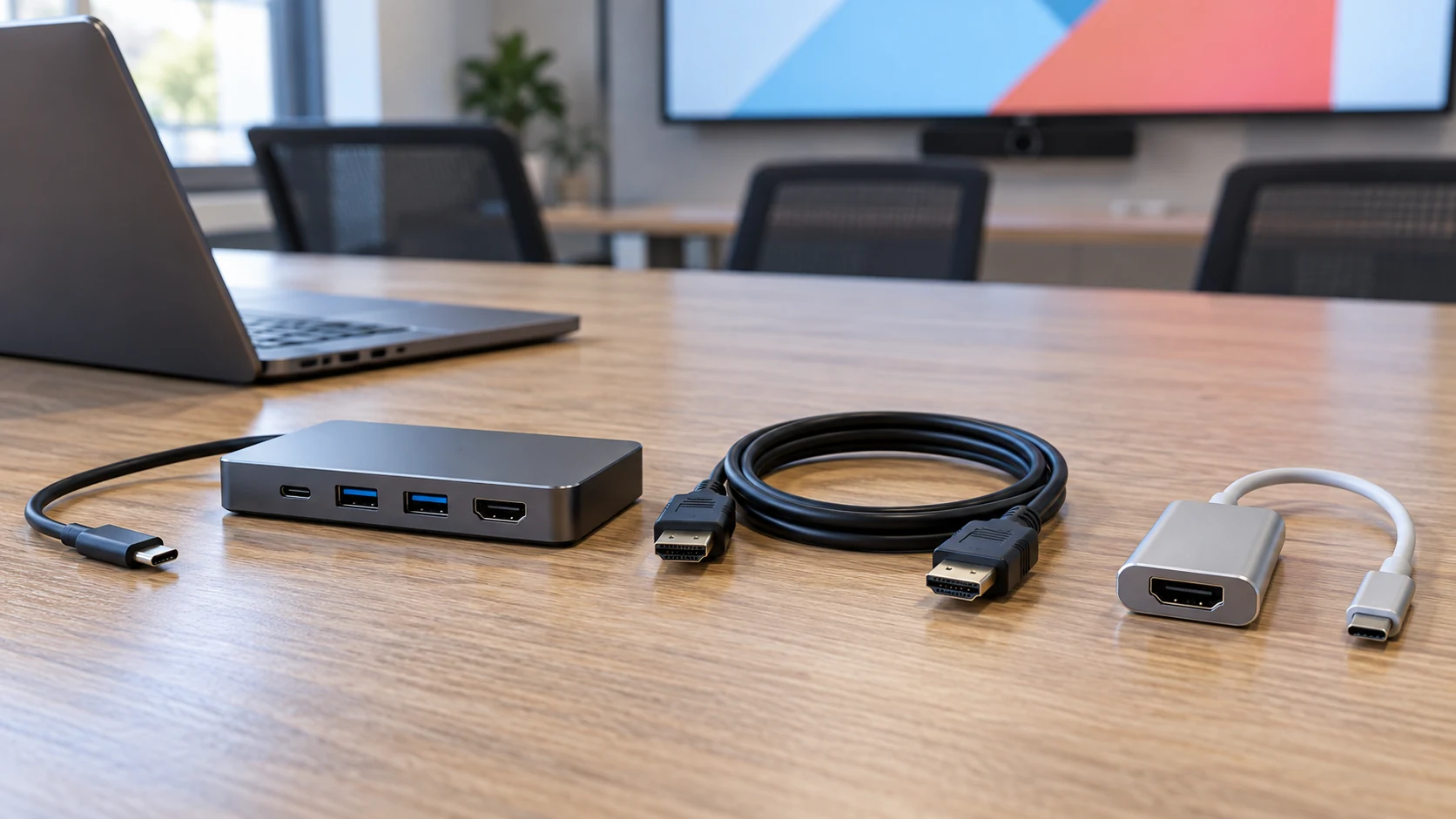
Start with the organization’s managed laptop models, then decide how visiting users will connect. If arbitrary guest hardware cannot be fully supported, provide an approved room adapter or a dedicated presentation computer and explain the boundary. “Bring any laptop” creates a much larger support promise than “use these tested connections.”
Include the intended operating-system display mode: duplicate, extend, or an approved presentation application workflow. Check the visible result at the audience position as well as the source settings. Test slides, fine text, a geometry pattern, and representative video. A picture appearing on the wall is only the beginning of acceptance; it must also occupy the correct region and remain usable.
Approve reconnection behavior, not just first connection
Plan tests around ordinary user actions. The aim is to find dependencies while the integrator is present, not during the first customer meeting. Use normal manufacturer-approved operation and agree a maintenance window for any room-system restart.
- Start the room system before connecting the laptop, then repeat with the laptop already connected.
- Disconnect and reconnect the approved presentation cable, recording the resulting format and visible image.
- Put the laptop through its normal sleep and wake workflow, including dock behavior where applicable.
- Switch to another approved source and back using the actual control interface.
- Repeat with each required destination route and with any shared preview display connected.
- Restore the saved configuration after a planned restart and repeat the important connection cases.
For each case, record the source model, connection kit, selected input, EDID profile, observed output format, image position, audio result, and any manual step needed. Agree what counts as a pass before testing. If recovery requires an operator action, document it plainly instead of presenting the route as unattended or automatic.
The Lightware manual also notes that some sources may not react to its hot-plug notification after an EDID change and may need restarting. That product-specific warning is a useful reason to test source behavior rather than assume every computer reacts identically. Do not change profiles during a live presentation without an agreed procedure.
Separate EDID symptoms from other input problems
A blank screen deserves a diagnosis, not an immediate profile replacement. Before changing settings, capture the source’s selected output and the receiving device’s reported input status. Check whether the problem follows one laptop, one adapter, one route, or one type of content. Change one variable at a time and preserve the known working configuration.
| Observed symptom | Check before blaming EDID |
|---|---|
| Desktop appears but protected video does not | Application behavior and HDCP compatibility across the authorized playback path |
| Picture appears with the wrong shape or missing edges | Source timing, processor scaling, crop, and the intended content region |
| One adapter fails while the approved kit works | Adapter model, source port, cable, power requirements, and supported format |
| Picture returns only after a reconnect or restart | Connection sequence, device status, saved profile, and source reaction |
| Only one destination route fails | Every device and format constraint on that route |
EDID communication and HDCP content protection are different issues. Lightware documents HDCP status separately from input signal information and describes limits when protected content meets a non-compliant destination. Request a compliant end-to-end route for the content you are entitled to show; editing an EDID file is not a substitute for that requirement.
Use the video processor input checklist to keep connector type, format acceptance, switching, scaling, and content protection in their own approval columns. This makes supplier responses easier to compare and avoids replacing a working display component for an upstream problem.
Make compatibility evidence part of the quotation
Ask the quotation to identify who supplies and configures the source-facing equipment. Include the approved adapter kit, profile setup, source testing, documentation, and onsite retest in the scope discussion. If these items are excluded, name the party responsible and leave time in the schedule for joint commissioning.
A practical acceptance sheet should list required source combinations, intended format, route, test sequence, observed result, and responsible reviewer. Mark untested combinations as untested. Do not convert a limited compatibility test into a claim that all computers, applications, and adapters will work.
Decide what happens after an IT image change, a dock replacement, a graphics-driver update, or a routing change. The party making the change should know which cases need retesting and where to find the approved baseline. Add the resulting record to the broader LED display commissioning checklist.
Save a profile that can be understood later
The handover should contain the exported EDID file where supported, its readable description, assigned device and input, firmware version, tested sources, and the date of acceptance. Also record how the integrator captured or created it. A file called “final” without a port assignment or test record is difficult to trust after equipment changes.
Store it with the signal diagram, processor presets, and display configuration backup. Keep a documented recovery route using the approved tools. Do not restore an old profile blindly after adding a new destination or changing the desired video format; confirm that the original assumptions still apply.
What should you send with an RFQ?
For an LED display EDID and input-compatibility review, provide the wall canvas, intended content layout, laptop and player models, connection ports, docks, adapter kit, switcher and extender route, audio needs, and required startup behavior. Include any guest-presenter policy and shared recording or preview destination.
Send these project details to Mirun so the LED display and processor scope can be coordinated with your AV integrator and IT team. Ask for a defined test plan and clear responsibility boundaries before approving the complete system, not simply a successful picture during a sales demonstration.
Frequently asked questions
Must the laptop output the LED wall’s exact pixel dimensions?
Not always. The system designer may choose a supported standard input and map it to an approved region of the wall. Exact pixel mapping, scaling, cropping, and aspect ratio must be agreed separately and tested on the proposed processor.
Does saving an EDID profile guarantee every guest laptop will work?
No. A saved profile does not validate every source, adapter, cable, application, or route. Define the supported connection kit and test representative sources. Provide a practical fallback for equipment outside that tested scope.
Should buyers edit EDID files themselves?
Assign custom-profile work to the responsible integrator using supported tools and manufacturer documentation. Buyers should approve the required operating result, receive the saved profile and test evidence, and know whom to contact when the configuration changes.
Need help choosing the right LED display?
Tell us your installation scene, screen size, pixel pitch target and timeline. Mirun Hailian can help match the right product configuration.