A venue may need a main presentation, a camera view and a reference image on the same LED wall. The sales demonstration shows all three pictures, so the layout appears settled. Then the operator recalls another scene, a source disconnects, or a small window hides an important caption. The hardware may still be working, but the purchased workflow has not been fully defined.
Approve an LED wall multi-window layout by testing the required simultaneous sources, window geometry, overlap order and preset transitions on the proposed configuration. Count independently managed live pictures—not just input connectors or rectangles in a screenshot. Include the real source formats and operating mode, then confirm that each window remains usable from the intended viewing positions.
This guide is for buyers specifying a presentation, monitoring or live-event display. It focuses on how multiple pictures share one canvas. It is not a universal processor-capacity table or a claim that every LED controller supports the same features.
First decide where the pictures will be combined
There are two broad design routes. A media server or computer can assemble several pictures upstream and send one composed video signal to the LED system. Alternatively, a multi-window processor can accept separate sources and place them on a shared output canvas. A project can also combine these routes, so name the equipment responsible for each composition step.
A single composed feed can suit a designed presentation whose layout is controlled in the source application. However, the LED processor sees that composition as one incoming picture; it does not automatically gain independent control of the original sources. If the operator needs to swap one live feed while leaving the other pictures untouched, identify where that action is performed and demonstrate it.
For separate-source processing, list which signals must be live at the same time. A connected spare laptop is different from a fourth picture that must remain visible continuously. Record connector type, resolution, frame rate and the intended adapter for each source. Use the LED video processor input checklist to check source compatibility alongside the layout requirement.
Separate input count, window count and operating mode
A processor with several input ports may select among them without displaying them all simultaneously. Likewise, a background, a logo, a cropped copy of a source and an independently scaled live window may be handled differently. Ask the supplier what counts toward each relevant resource limit in the exact configuration.
Manufacturer terminology needs that context. The NovaStar VX1000 manual, version 1.3.1, describes a main layer and two picture-in-picture layers, but its ByPass mode makes those two PIP layers unavailable. This is a model-specific example of why a layer count cannot be separated from the selected working mode.
Request a layout-to-configuration confirmation rather than a bare claim of “three windows” or “four inputs.” It should state the simultaneous source combination, each source format, layer dimensions and any restrictions involving crop, rotation, background or processing mode. If a future layout needs more sources, ask whether it requires different hardware, upstream composition or another approved architecture.
Do not assume the published maximum source resolution can be used on every input, on every layer, with every other feature enabled. The manufacturer’s applicable documentation and the proposed demonstration must establish that combination. Keep this question separate from the total number of pixels the LED output can load.
Give every operating scene a purpose
Define scenes around the work people actually do. A presenter-focused scene might have one large picture and a smaller camera inset. A comparison scene might give two sources equal space. A review scene might show several feeds briefly, then enlarge one for a closer look. These are different requirements even if the same devices remain connected.
| Operating scene | Layout intention | Buyer approval priority |
|---|---|---|
| Single-source presentation | One primary picture uses the useful canvas | No unintended crop; essential content remains visible |
| Side-by-side comparison | Two sources receive agreed prominence | Matched geometry and enough detail for comparison |
| Main picture with inset | A secondary view sits above the main image | Inset does not conceal essential material |
| Multi-source overview | Several feeds are visible together | Window size supports the actual observation task |
For each scene, name the sources, allowed substitutions, window positions, overlap order and audio destination. Also define what an operator may change during normal use. “Drag any window anywhere” might suit an expert technician, while a small set of protected presets can be easier for a venue team. Specify the control experience rather than assuming flexibility alone is the benefit.
Distinguish audience-facing scenes from technical preview layouts. A technician may need to see a source that should not appear on the main wall. Confirm which equipment produces that preview and whether it matches the final output. An attractive control-software preview is not proof that the same arrangement reaches the audience.
Calculate usable detail inside each window
The wall’s full resolution does not belong to every picture simultaneously. On a hypothetical 2560 × 1440 canvas, four equal windows with no gaps would each occupy 1280 × 720 pixels. Fitting a complete 1920 × 1080 source into one such window requires uniform scaling to two-thirds of its original dimensions. A 30-pixel-high source label would occupy roughly 20 output pixels before any other processing.
That is a simple planning calculation, not a hardware specification or readability threshold. Borders, spacing, unequal windows and cropping change the allocation. Viewing distance and the actual content then determine whether the result is useful. A feed suitable for recognizing movement may not be suitable for reading small labels or comparing fine image detail.
Test the smallest important information at the smallest window size the operating plan permits. Use real slides, representative video and the actual data view, with appropriate permission and sensitive information removed. The LED wall text readability guide covers the viewing-position check; here, perform it separately for each required scene.
Record the pixel canvas, not only a percentage such as “quarter screen.” If the source is fitted into a window with a different aspect ratio, approve the unused area or crop explicitly. The content handover guide helps distinguish file dimensions, active regions and the installed pixel map.
Approve picture-in-picture overlap before the show
Overlap order determines which picture appears in front. A foreground window can hide a caption, a logo or a critical part of the main source without causing a signal fault. Agree on protected content regions and place the inset where it does not interfere with the intended task.
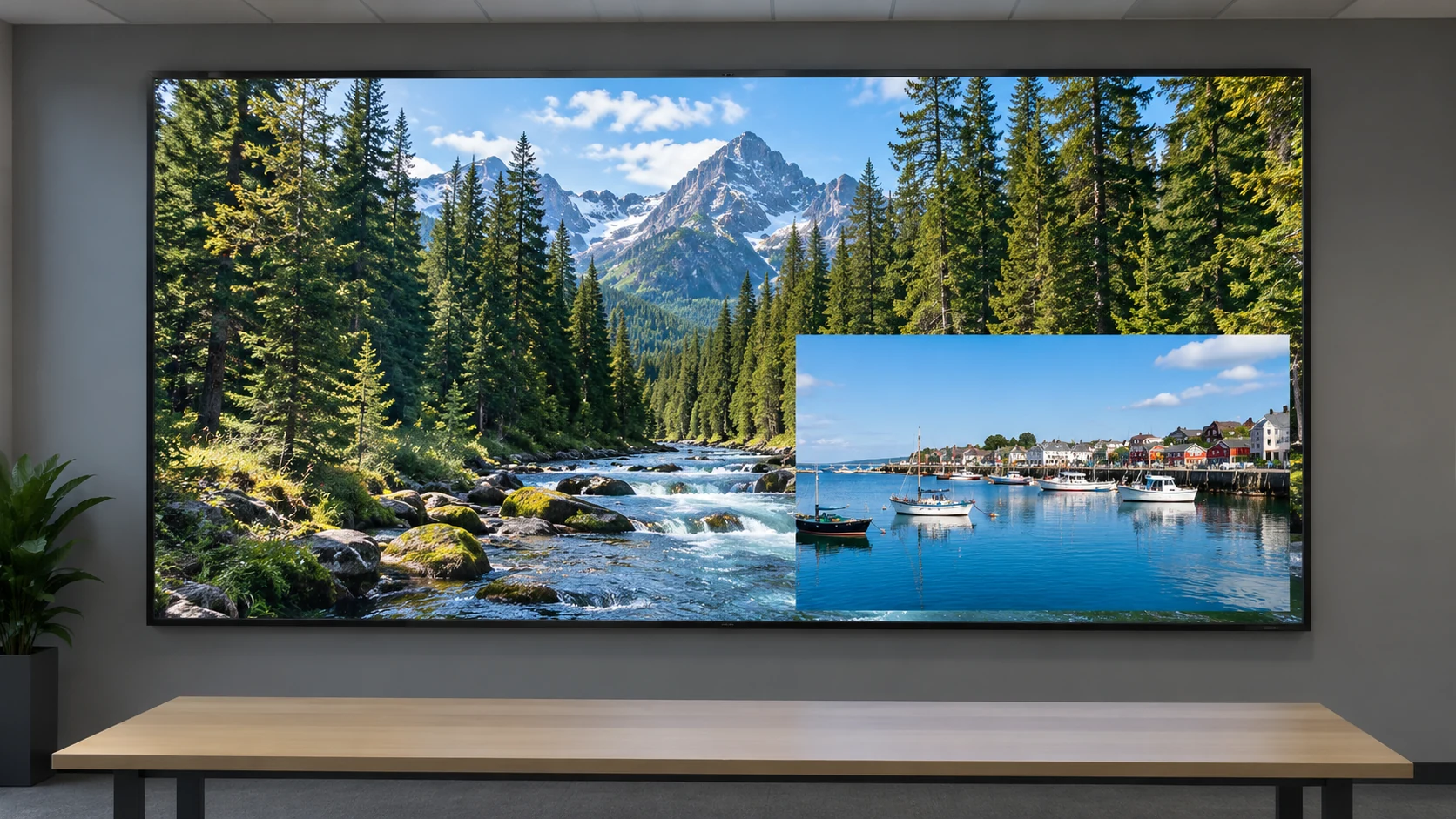
Keep window position, source crop and stacking order as separate settings in the acceptance drawing. Moving a window changes its location on the canvas. Cropping changes which part of the source is shown. Raising its priority changes what it covers. The VX1000 manual documents these as distinct layer controls; use the applicable manual to identify the equivalent controls in the proposed system.
Also approve any transparency, border or label treatment actually required. A semi-transparent overlay can preserve some background visibility while reducing contrast for both pictures. Test it with the intended material instead of approving it from a bright promotional photograph. If content changes frequently, establish an operator rule for checking the inset against new captions and subjects.
Test window presets as an operating sequence
Preset recall should do more than reproduce a familiar screenshot. Ask which values are saved, which remain global and whether source selection, window priority or background state is restored. Establish what happens when a preset refers to an unavailable source. The correct response depends on the venue’s needs and the selected equipment.
For example, the Extron MGP 641 xi Series user guide documents window presets and automatic layouts based on active inputs. That feature can be useful, but a layout that changes automatically may not suit a venue that needs fixed positions. Confirm whether such behavior is available and enabled on the actual proposal; do not assume all processors behave this way.
Agree on a rehearsal sequence before acceptance. Set repetition counts and acceptable interruptions for the project. The following checks are a buyer-defined test plan, not a manufacturer certification procedure:
- Load every required source concurrently using the final source formats and processing mode.
- Recall the single-source, comparison and overview scenes through the intended operator controls.
- Change one selected source and observe whether other windows, crops and audio remain as agreed.
- Disconnect and restore an agreed test source; check whether windows stay fixed or rearrange, and whether recovery needs operator action.
- Restart the system according to the supplier’s procedure and verify the agreed startup scene.
- Record the actual configuration, observations and any restrictions before signing off.
Inspect the visible transition as well as the destination layout. A hard cut, an animated resize or a temporary freeze can affect the audience differently. State the behavior the venue accepts and test the real control method. A switch from the processor’s front panel may not reproduce the timing or command sequence of a separate room-control system.
Confirm the audio rule too: one selected source, a separate audio system or another explicitly designed route. Multiple visible pictures do not imply a suitable mix of their soundtracks. Verify audio when scenes change, not only while a static layout is displayed.
Compare the complete multi-window scope
Two quotations may show the same drawing while assigning composition to different equipment. One may include a processor and operator presets; another may rely on an existing computer application. Compare the supplied source interfaces, simultaneous processing capability, control method, commissioning and documentation before comparing the total price.
Ask who creates the presets, approves the content geometry and maintains the control interface. Identify any required software license, external controller, media-server work or operator training. Do not assume those items are included simply because a brochure shows a multi-picture screen. Have the integrator name exclusions and demonstrate the purchased package.
At handover, keep the approved scene drawing, source list, firmware baseline, preset names and startup procedure together. Save the matching configuration through the LED display configuration backup process. A photograph cannot restore source assignments, crops or priorities.
If another processor is proposed for expansion, request a drawing showing how the combined canvas and controls work. Additional equipment does not automatically create a unified layout with coordinated recall. Retest the scenes affected by a new source, firmware change or revised control command; retain the previous known-good package where the system supports recovery.
Questions that clarify the purchase
Can one laptop supply four pictures to the LED wall?
It can supply one composed picture containing several views if the application and output workflow support that design. That is different from four independently managed inputs at the LED processor. Confirm where each view is selected, updated and monitored, and test the required simultaneous workload.
Do all sources have to use the same resolution and frame rate?
There is no universal answer across processors and composition routes. Ask for the permitted simultaneous format combination on the selected inputs and mode. Different input formats may be processed into a common output, but the proposed equipment and test must establish that behavior.
Will adding more LED cabinets increase the number of windows?
Not automatically. Cabinets increase or change the display surface and pixel arrangement; independent-window capability comes from the composition system. A larger canvas may also change readable window sizes and processing requirements. Recheck both rather than treating cabinet quantity as a layer upgrade.
Make the layout part of the project brief
A useful LED wall multi-window layout is an approved operating tool, not just a visual mockup. Define simultaneous sources, allocate enough detail to each picture, protect essential content from overlays and rehearse preset changes. Acceptance should cover the intended scene sequence on the supplied configuration.
For a project discussion with Mirun, provide the wall’s intended dimensions or pixel canvas, the source list and formats, required simultaneous pictures, a sketch of each scene, viewing positions and the planned operator controls. Note audio needs and future expansion separately. Send your multi-window layout brief with the LED wall inquiry so the display and integration scope can be reviewed together.
Need help choosing the right LED display?
Tell us your installation scene, screen size, pixel pitch target and timeline. Mirun Hailian can help match the right product configuration.